
Your Windows apps,on the same rail.
Add the Windows apps you open every day next to your web apps, with the same pins and groups. A click opens one or brings it forward. Nothing about them leaves your PC.
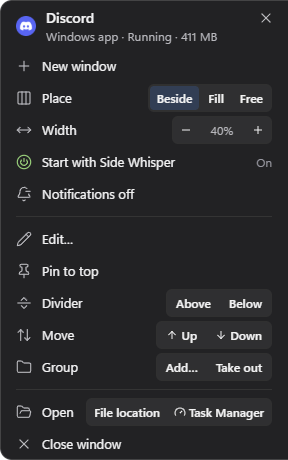


Add them like any app.
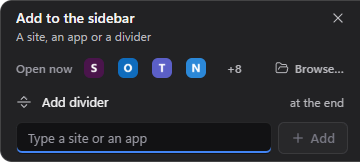
The Add drawer opens beside the rail and finds the apps on your PC as well as sites. The first Windows app makes an Apps group, and you can move apps anywhere after.
Type its name
The field that takes a site’s address also finds the apps installed on your PC as you type. Pick one and it joins the rail.
Pick one that is open
With the field empty, the drawer shows the apps open now. One click puts an app on the rail, and the drawer stays open for the next.
Browse, or drop from File Explorer
Browse… picks a program or its shortcut. Drag programs from File Explorer onto the rail and they land where a line shows, up to 20 at a time.
Type the address, get the app
Type the address of a service whose Windows app is installed, such as spotify.com, and the drawer says it is installed on this PC and offers Add app.
One kind at a time
Once a Windows app is on the rail, the lens under the Inbox tab shows all apps, only web apps or only Windows apps.
One click. One menu.
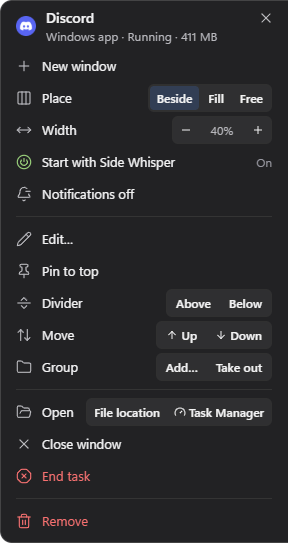
A click opens the app or brings it forward. Its menu, a right-click away, holds the rest, from its windows to End task.
Open, bring forward, minimize
A click starts the app or brings its window forward, restored if it was minimized. Click it again while it is in front and it minimizes.
A new window, or as administrator
Shift+click or the middle button opens a new window. Ctrl+Shift+click starts the app as administrator, and Windows asks first.
Its windows, in its menu
Right-click the tile and the menu’s header says what the app is doing and the memory it uses, such as “Windows app · Running · 412 MB”. With several windows open it lists them: click one to bring it forward, or × to close it. New window and Close window are there too.
End task, after you confirm
End task asks once more, “End now?”, before it stops the app, and unsaved work is lost. Task Manager and File location open from the same menu, and an app that stops responding puts End task first.
Notifications off
Turn them off and the app shows no badge, Inbox entry or ring. Windows still shows the app’s own banners, and Also turn off in Windows opens the page where they stop.
Edit
Edit… renames the app, takes its current icon again and, for a desktop program, starts it as administrator every time, with Windows asking each time.
Unread and status, on the tile.
A Windows app’s tile says what the app is doing, and its unread count joins your web apps’ in the Inbox.
Where the count comes from
The count is the one the app writes in its own window title, as many chat and mail apps do, and the Inbox tab adds it to your web apps’ unread. Once the app is in front, what it showed counts as read.
In the Microsoft Store version, allow Notifications from Windows apps under Settings, General, Windows apps, and answer Windows’ own question. The count then follows the notifications Windows shows for the app, and the Inbox lists their messages.
Side Whisper reads the notifications of the apps on your rail only. It keeps them in memory and never sends them.
What the tile shows
- Running
- The running mark, as on an open web app’s tile.
- In front
- The accent drop rests on the app in front.
- Opening
- The running mark draws itself while the app starts.
- Not responding
- An amber chip, when Windows says the app does not respond.
- Wants your attention
- An accent dot, when the app flashes for your attention.
- Not installed on this PC
- The icon dims, and a click offers to remove the app.
Mark Windows apps, under Settings, General, Windows apps, puts a small window in the corner of their tiles.
The Windows apps desk.
Pro Give each app a place beside the sidebar and a width of its own, see its windows before you bring one forward, and start it with Side Whisper.
Beside the sidebar, or the rest of the screen
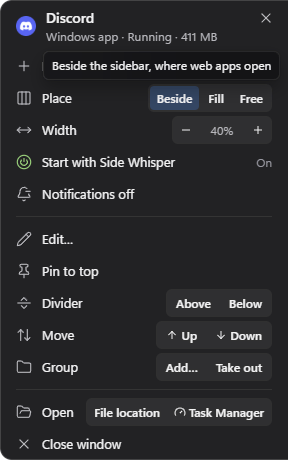
Beside puts an app’s windows next to the sidebar, where web apps open, and Fill gives them the rest of the screen. Choose it for the app, or for one window in its menu or in Peek; a window you cannot resize goes next to the sidebar at its own size. Free, the third choice, leaves a window where you put it and needs no Pro.
A width for each app
Width, in the app’s menu, gives it a width of its own, from 30 to 100 percent. Windows app width, under Settings, Appearance, sets it for every app placed Beside.
Peek on hover
Turn it on in Settings and rest the pointer on a running app: a card beside the rail shows up to four of its windows, drawn live by Windows, with the app’s CPU, memory and GPU use. Click a preview to bring that window forward.
A shortcut for each app
Set a global shortcut in the app’s Edit…, and it opens the app or brings it forward from anywhere.
Start with Side Whisper
Mark the apps you always use and they start with Side Whisper, minimized and in the background. Open all, on a group’s divider, starts the group’s Windows apps that are not running.
Hide the Windows taskbar
Side Whisper turns on the taskbar’s own auto-hide while it runs, and puts it back when you turn this off or quit. Clock on the rail, free on every plan, keeps the time in view.
On Free, Windows apps open, switch, minimize and end from the rail, with their menu, Task Manager, the lens and Hide rail apps from the taskbar, and the app you bring forward stays above other windows in Productivity On Top and Gaming. When Pro ends nothing is deleted: places, shortcuts and settings wait for Pro.
Get Pro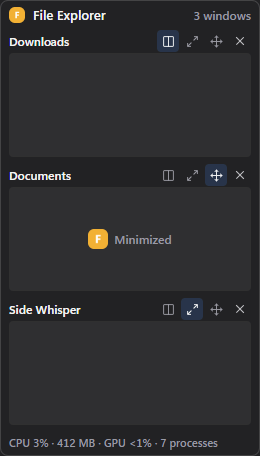
Read on your PC. Never sent.
Side Whisper reads these only while you look for a Windows app to add or while Windows apps are on your sidebar, and only on your PC. None of it goes to us or to anyone else.
- The list of apps in your Start menu, to find the one you look for.
- The windows that are open, with their titles and the programs they belong to: which apps run, and the counts some apps put in their titles.
- How much memory, processor and graphics processor the apps on your sidebar use, for their menu and Peek.
- The list of installed apps, their icons and the taskbar changes to undo, kept in Side Whisper’s own folder on your PC.
- None of it syncs between your PCs, and Windows apps stay out of backups and templates.
- Peek’s live previews, with Pro, are drawn by Windows while you hover, and never captured or saved.
Windows apps, answered.
More in the Windows apps guide.
Does this work on Free?
Yes. On Free you add Windows apps to the rail, open and switch them, end one from its menu or Task Manager, and use the lens and the Inbox’s counts. The app you bring forward stays above other windows in Productivity On Top and Gaming, and Hide rail apps from the taskbar is free too. The desk is Pro: Beside and Fill, a width for each app, Peek, a shortcut for each app, Start with Side Whisper and Hide the Windows taskbar.
Can Side Whisper close an app that runs as administrator?
No. Windows does not let Side Whisper close, end or move an app that runs as administrator, and the app’s menu says so. Open Task Manager from the same menu to close or end it there.
Why does the unread count differ from the app’s own badge?
Windows gives no app another app’s taskbar badge to read. So the count is the one the app writes in its own window title, as many chat and mail apps do, less what the title showed when you last looked at the app. An app that writes no count there shows none.
In the Microsoft Store version, once you allow Notifications from Windows apps, the count is the notifications Windows showed for the app since you last looked at it.
Do my Windows apps sync to my other PCs?
No. Windows apps stay on the PC you added them on. Sync, backups and templates leave them out, and a synced sidebar or a template you apply keeps them where they are.
Does the app stay above my game?
Yes, on Free. In Productivity On Top and Gaming, the Windows app you bring forward through Side Whisper stays above other windows and the game until you minimize it, bring another rail app forward or go back to Productivity. In Gaming View only the rail’s Window mode control takes a click, so switch to Interact to click a tile.
A game that keeps itself above every window can still cover it, and over a game in exclusive fullscreen Windows keeps it behind.
What about the Windows taskbar?
Two switches under Settings, General, Windows apps, both off until you turn them on. Hide rail apps from the taskbar, on Free, takes the rail apps’ buttons off the taskbar while Side Whisper runs, and Keep its taskbar button, in an app’s Edit, keeps one. Hide the Windows taskbar, with Pro, turns on the taskbar’s own auto-hide. Both are put back when you turn them off or quit Side Whisper.

Your apps, web and Windows,
one rail.
Free, with nothing to sign up for.